
TLDR: Learn how to build a local Model Context Protocol (MCP) voice assistant using FastMCP, a local LLM (picoLLM running Meta Llama 3.2) to handle function calling, speech-to-text, text-to-speech, and external API integration in this step-by-step MCP tutorial. Unlike cloud-based solutions like Claude or ChatGPT, this tutorial uses a fully local LLM for privacy and on-device capability.
What is MCP (Model Context Protocol)?
The Model Context Protocol (MCP) is an open-source standard developed by Anthropic that enables seamless integration between AI applications, language models, and external tools. Think of MCP as a universal adapter that lets your AI agent interact with databases, APIs, local files, and other services in a standardized way.
MCP solves a critical problem in AI development: without a standard protocol, every AI application needs custom integrations for each service it wants to access. MCP provides a consistent interface that works across different Large Language Models (LLMs) and tools, making AI applications more portable and maintainable. While MCP works with cloud providers like Claude, OpenAI's GPT models, Gemini, this MCP implementation tutorial uses Picovoice's picoLLM running Llama 3.2 locally.
Three Types of MCP Capabilities
MCP servers can provide three distinct types of capabilities:
- Tools: Executable functions that the LLM can call to perform actions (API requests, file operations, calculations)
- Resources: Read-only data sources like files, database queries, or API responses that the LLM can reference for context
- Prompts: Pre-written templates and workflows that guide the LLM through complex multistep tasks
This local MCP server tutorial focuses on tools—specifically, building function-calling capabilities that let your picoLLM-powered Llama 3.2 model interact with external APIs through MCP.
Why Build a Local MCP Voice Agent?
Most MCP tutorials rely on cloud-hosted models like Claude or ChatGPT. While convenient for prototyping, cloud-based solutions have significant drawbacks for voice applications:
- Latency: Round-trip API calls add 500-2000ms delays, creating awkward pauses in conversation
- Privacy: Voice data and queries are sent to remote servers
- Network dependency: Requires stable internet connection
A local MCP voice agent eliminates these issues. By running the LLM, speech recognition, and synthesis entirely on-device, you get:
- Much faster and more reliable response times for natural conversation flow
- Complete privacy—no voice or query data leaves your machine
- Offline functionality: (except for explicit external API calls and access key validation)
Python Voice Assistant Tutorial: What You'll Build Step-by-Step
In this tutorial, you'll create a local MCP AI voice assistant that:
- Listens to your speech using streaming speech-to-text
- Processes queries using a local LLM
- Calls weather API tools through MCP (FastMCP) based on your intent
- Responds with natural speech using text-to-speech
The assistant will understand conversational queries like "What's the weather like in San Francisco?" and respond naturally with current conditions and forecasts.
Local AI Voice Assistant: Architecture Overview
Here's how the components work together:
- User speaks → Captured via PvRecorder + Cheetah Streaming Speech-to-Text
- MCP client sends query + available tools to local LLM
- Local LLM (picoLLM - Meta Llama 3.2, quantized) analyzes query and selects appropriate MCP tool
- MCP server executes tool (e.g.,
fetch_weather) via external weather API and returns structured data - Local LLM formats raw data into conversational response
- Text-to-Speech engine (Orca Streaming Text-to-Speech) converts response to speech → played via PvSpeaker
The entire process runs locally except for the weather API call itself, ensuring privacy and low latency.
Prerequisites
Before starting, verify you have:
- Python 3.10 or higher installed
- Linux, macOS, or Windows operating system
- Microphone and speakers for voice interaction
- Internet connection for initial setup and weather API calls
Estimated time: 45-60 minutes including setup
Step 1: Set Up Your Python Environment for MCP Development
Create an isolated Python environment for the project:
Note: The Python MCP SDK must be version 1.2.0 or higher.
Step 2: Build the MCP Server in Python
An MCP server acts as a bridge between your LLM and external services. The server exposes well-defined tools that the LLM can invoke with structured parameters.
Configure API Keys
Sign up for WeatherAPI (free tier available) and add your key to .env:
Note: Keep your .env file out of version control to protect API keys.
Initialize the MCP Server
Create server.py and set up the basic server structure:
Key points:
FastMCPprovides a lightweight MCP server implementation optimized for local use- The server name ("Weather Voice Assistant") appears in logs and helps with debugging
- Environment variables keep sensitive credentials separate from code
Helper Function for Temperature Units
Add this utility function before defining tools:
This ensures weather responses use the appropriate temperature scale based on location.
Define MCP Tools
Tools are the core of your MCP server. Each tool must have:
- Clear function signature with type hints
- Docstring explaining purpose and parameters (the LLM reads these!)
- Structured return format
Tool 1: Current Weather
Important implementation details:
- The docstring is crucial—it tells the LLM when to use this tool
- Return format must be consistent:
successboolean +contentsorerror - Error handling prevents server crashes when API calls fail
Tool 2: Weather Forecast
Design considerations:
- The
daysparameter lets the LLM request flexible forecast ranges (maximum 14 days) - Pre-formatting the response reduces LLM hallucination on numerical data
Start the MCP Server
Add the entry point at the end of server.py:
The server is now complete but won't do anything on its own. In the next section, we'll build the client that orchestrates the LLM, MCP server, and voice interaction.
Step 3: Build the MCP Client with a Local LLM: Integrate Llama 3.2
The MCP client is the orchestration layer. It manages the connection to the MCP server, handles user input (voice or text), coordinates with the local LLM for intent recognition, and executes tool calls.
Get Picovoice Credentials
Sign up for a free Picovoice Console account and copy your AccessKey. Add it to .env:
Download a Local LLM
Download a function-calling compatible model from the picoLLM page. This tutorial uses Llama 3.2 3B Instruct (llama-3.2-3b-instruct-505.pllm).
Model requirements: The LLM must support function calling.
Place the .pllm file in your project directory (e.g., ./models/llama-3.2-3b-instruct-505.pllm).
Set Up the Client Structure
Create client.py with necessary imports:
Import breakdown:
mcp.*: Core MCP client libraries for server communication- picollm: Local LLM inference engine
- pvcheetah, pvorca, PvRecorder, PvSpeaker: Voice I/O components
AsyncExitStack: Manages cleanup of async resources
Initialize the Client Class in Python
Connect to the MCP Server
How it works:
- Spawns the MCP server as a subprocess using
python3and the given script - Sets up communication channels (
stdin/stdout) with the server - Initializes an MCP client session over that connection
- Queries the server for available tools
- Prints the tool names to confirm the connection
Troubleshooting: If connection fails, verify server_script_path is correct and the server has no syntax errors.
Add Function Call Parsing
The LLM returns function calls as strings. We need to parse them:
Why this is needed:
- The LLM outputs function calls as text, not executable code
- We extract function name and parameters using regex
- Arguments are parsed into a dictionary for MCP tool invocation
If you switch models or adjust the prompt context, the LLM may emit function calls in a slightly different format, so you may need to adapt this configuration accordingly.
Process Queries with Tool Calling
This is the core logic that orchestrates LLM and MCP:
Implementation details:
- Llama 3.2 prompt format: The
<|begin_of_text|>tags are specific to Llama 3.2's expected format - Two-phase LLM calls:
- First call: Determine which tool to use
- Second call: Format raw tool output into natural language
- Temperature=0.0: Ensures deterministic tool selection (no randomness)
- Dialog history: Maintains context between the two LLM calls
Model-specific note: If using a different LLM, adjust the prompt template to match its expected format (check model documentation).
Build a Voice Chat Loop: Add Real-Time Speech Recognition
Voice interaction flow:
- Microphone captures audio frames continuously
- Cheetah Streaming Speech-to-Text processes frames and outputs transcribed speech in real-time
- When an endpoint is detected (2 seconds of silence), the query is finalized
- Query is processed through MCP + LLM
- Response is synthesized to audio by Orca Streaming Text-to-Speech and played through speaker
Tip: adjust Cheetah's endpoint duration during initialization if longer pauses are anticipated during formation of a query.
User experience features:
- Real-time transcript display shows what the system hears
- Type 'stop' to exit gracefully
- Both text and voice output for clarity
Clean Up Resources
Add Main Entry Point
Complete Code: MCP Voice Assistant in Python
Here are the complete files for client.py and server.py:
client.py
server.py
How to Run Your Local MCP Voice Assistant
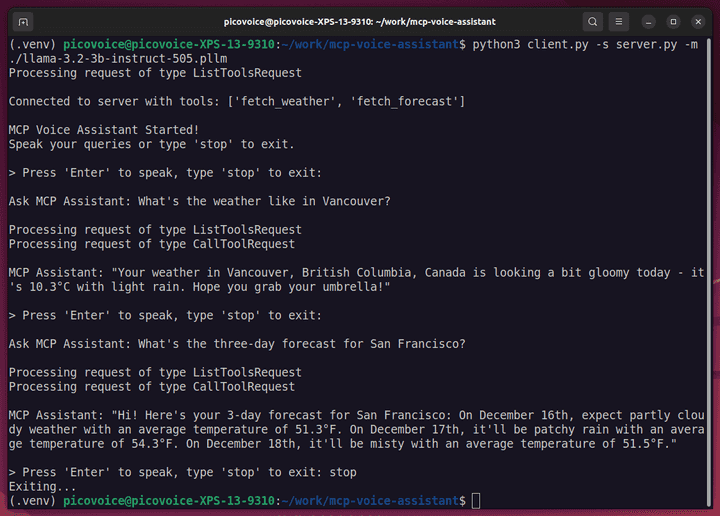
Start the client (which will automatically start the server):
Example interaction:
Extend Your MCP Voice Assistant: Advanced Features and Integrations
Once your local MCP voice assistant is running, there are several ways to extend and improve it:
1. Add More Tools
Expand the assistant's capabilities by creating new @server.tool() functions. For example:
- Calendar or task management integration
- Local file search and retrieval
- Smart home control (lights, thermostat, etc.)
2. Improve LLM Interaction
- Experiment with different prompt templates or dialog strategies to improve response quality.
- Add multi-turn conversation memory to maintain context over longer interactions.
- Try other function-calling compatible models to balance speed, accuracy, and resource usage.
3. Enhance Voice Experience
- Implement keyword detection with Porcupine Wake Word so the assistant can run completely hands-free.
- Support multiple voices or languages with Orca Streaming Text-to-Speech.
4. Build a GUI or Web Interface
- Create a local dashboard to display conversation history and tool outputs.
- Visualize responses, forecasts, or other tool data in charts or tables.
- Offer text input as an alternative to voice for accessibility.
Troubleshooting
The client cannot connect to the MCP server
- Confirm the
-s / --server_scriptpath points to the correctserver.pyfile. - Look for error messages printed before the connection attempt; server startup errors will prevent the connection.
No tools are listed after connecting
- Check that your tool functions are decorated with
@server.tool(). - Make sure
server.run(transport="stdio")is called inserver.py. - Restart the application after making changes.
The LLM does not call any tools
- Make sure the model you downloaded supports function calling.
- Verify the prompt format matches the expected format for your model.
- Ensure your query is clear enough so the LLM can decide what tool to use (e.g., "What is the current weather in Vancouver?").
Weather requests fail or return errors
- Confirm your WeatherAPI key is valid and has not exceeded its free-tier limits.
- Check your internet connection, as weather data is fetched from an external API.
- Try a well-known city name to rule out location parsing issues.
Frequently Asked Questions
An internet connection is required for initial setup and for weather API requests. All speech processing, LLM inference, and tool selection run locally.
Yes. Any local model that supports function calling can work. You may need to adjust the prompt format and function call parsing to match the model's output.
MCP provides a standardized way to expose and invoke tools across different models and applications. It reduces custom glue code and makes your assistant more portable as you change models or tools.
Absolutely. You can add additional '@server.tool()' functions for other APIs or local actions, such as file access, reminders, or system commands.


